The Resource Assignment application enables resources to be reserved, and it is possible to create an assignment that has no services attached to it. This is particularly useful where organisations may need to remove a vehicle from service for maintenance. The vehicle would then not be able to be assigned.
Users can also choose to allocate a resource for specific dates (start and end dates) where the resource can be reserved, these assignments can then be edited at a later date and have services attached to them if required.
Reserve Resources
-
From the Home menu, select
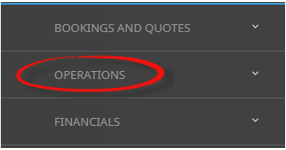
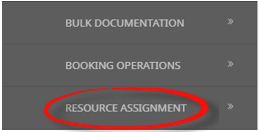
 Home > Operations > Resource Assignment.
- Click the Home Menu to expand it:

- Click the Operations menu option to expand it:

- Click Resource Assignment to open the Resource Assignment screen:

- Click the Home Menu to expand it:
-
If you want to reserve a resource, clickReserve Resources.

-
On theReserve Resources screen, enter a Name, and select an Assignment Status. Select a Start Date and End Date and if you know the Start and EndTimes enter these too.

- Select a resource, vehicle, driver or guide.
- Check the completed screen.
-
ClickSave to keep the changes.

-
ClickExit to discard any changes.


Continue adding resources until you have completed the fleet of vehicles, number of drivers or guides necessary for your organisation.
The following procedures will include assigning the resources (once reservations have been put in place - either through the FITs or Groups booking applications).